Mangopay
You can integrate the Mangopay payment gateway into your store using the Dokan cloud.
Here is how you can configure the Dokan Cloud Mangopay payment gateway.
*Note*: Make sure your store has the currency supported by Mangopay.
Login to your Dokan Cloud dashboard and go to *Settings--> Payment*. There you will find the Mangopay option. Click on the Connect button-

You will be redirected to the Mangopay settings page. There you will find all the Payment methods available in Mangopay-

Enable them after you have configured the gateway.
Now go to the Settings page where you have to configure the gateway-

To get the API key you need to login to your Mangopay account.
*Note*: We are using the Mangopay Test Gateway for testing purposes. Also, to use the test gateway, you must make the user a test user. When you go live, you need to use your live API Key and Client ID.
In your Mangopay dashboard,go to the *Developers--> Demo Marketplace*-

If you have an existing marketplace then log into it with your credentials. Otherwise, create a new demo marketplace with the necessary information-

After creating the demo marketplace, copy your test client ID and API Key-

Now, paste it in your eCommerce/marketplace site-

Don't forget to Save changes.
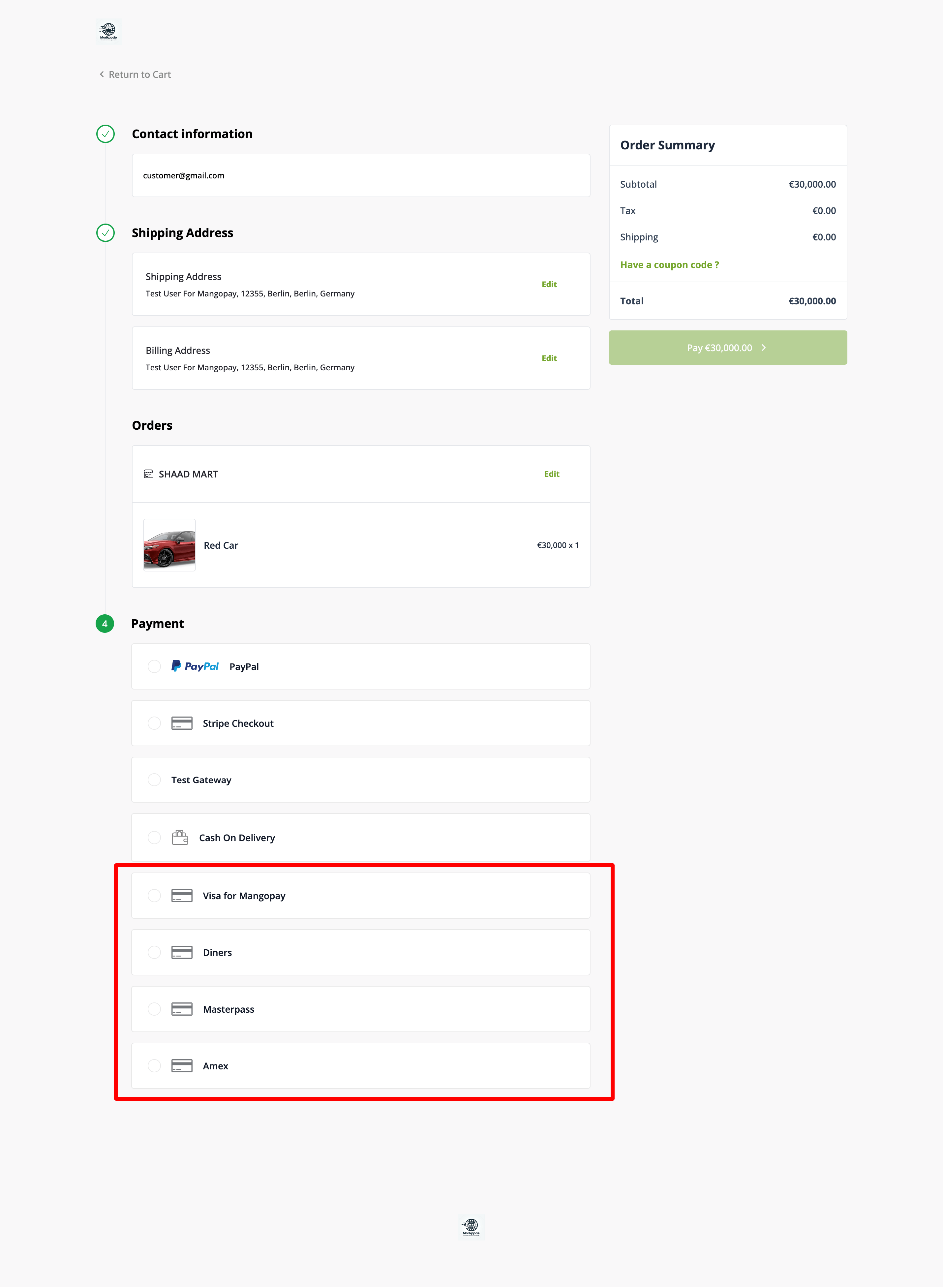
Here is what the Mangopay payment gateway will look like in the checkout page-
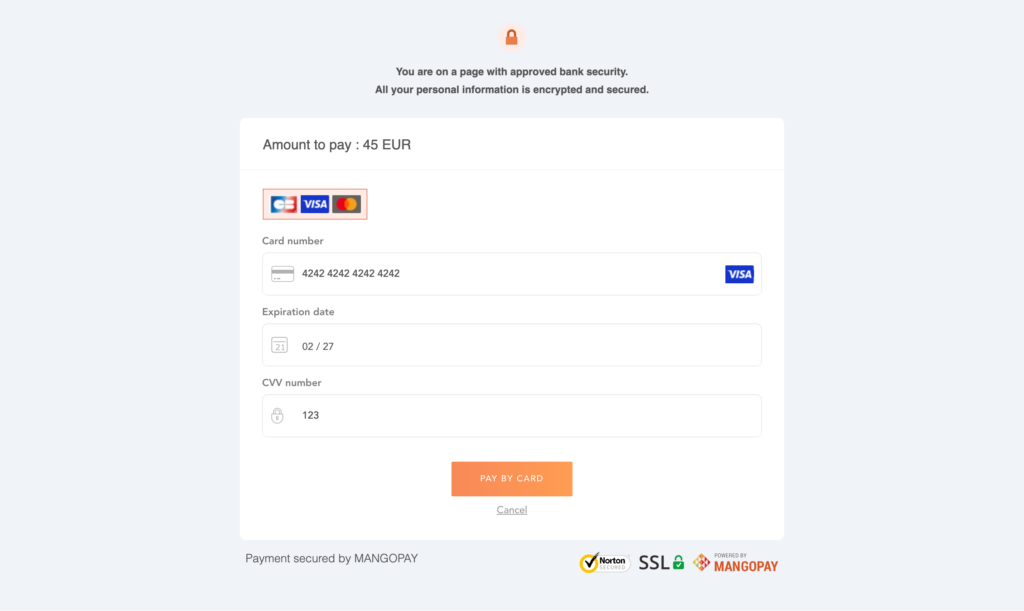
Customers can now pay using the Mangopay payment gateway-
This is how you can configure the Mangopay payment gateway in Dokan Cloud.
Последнее изменение: 25/02/2026
Спасибо!