Payment (Stripe, PayPal)
You can add quite a few payment options to receive payments from your customers with Dokan Cloud. You will find all the payment options when you navigate to *Settings→ Payment.*

*Note*: You will only see the payment methods supported according to your region.
From there you can enable Test Gateway and Cash On Delivery payment methods to receive payments.
In order to use the test payment gateway, you have to mark the customer as a "Test User".

How to Enable Stripe Payment Gateway
To enable the Stripe payment gateway, click on the Connect button beside the Stripe payment gateway.
You will first see the Payment Methods page where all the payment methods available for Stripe-

In order to connect Stripe, you need to add your ids from the the Stripe Settings page.
*Note*: Make sure you enable at least one payment gateway after configuring the settings. Otherwise, you will see an error.
Add the redirect URL to your Stripe Account. In your Stripe Account go to *Settings--> Connect --> Onboarding Options--> oAuth*. There add the redirect URL by clicking on the ADD URL button-

Then you need to add-
- Publishable Key
- Secret Key
- Client ID
**When add these three components, the Webhook Secret key will be added automatically. **

To find the keys, go to *Developers--> API Keys* from your Stripe account-

For the webhook, just go to event destinations, then click the *Reveal* Signing Secret, copy and paste it,

Now, add the keys to your Dokan Standalone dashboard-
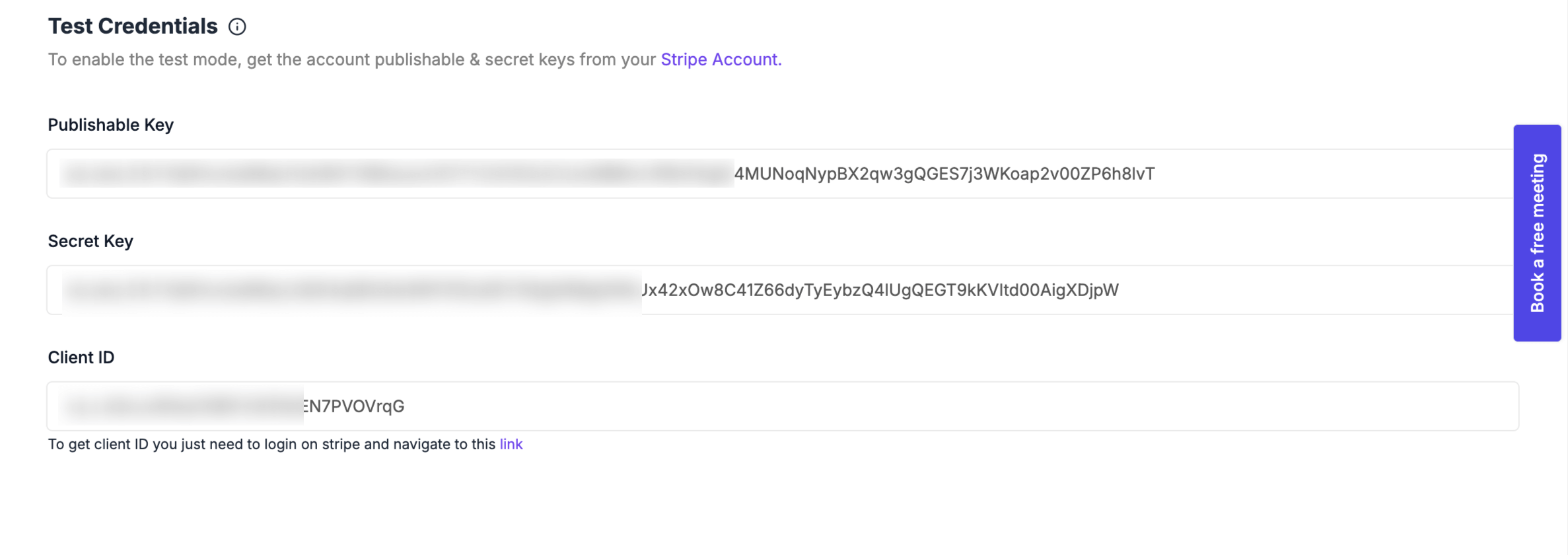
Also, you need to enable the payment methods from the Payment Methods page-
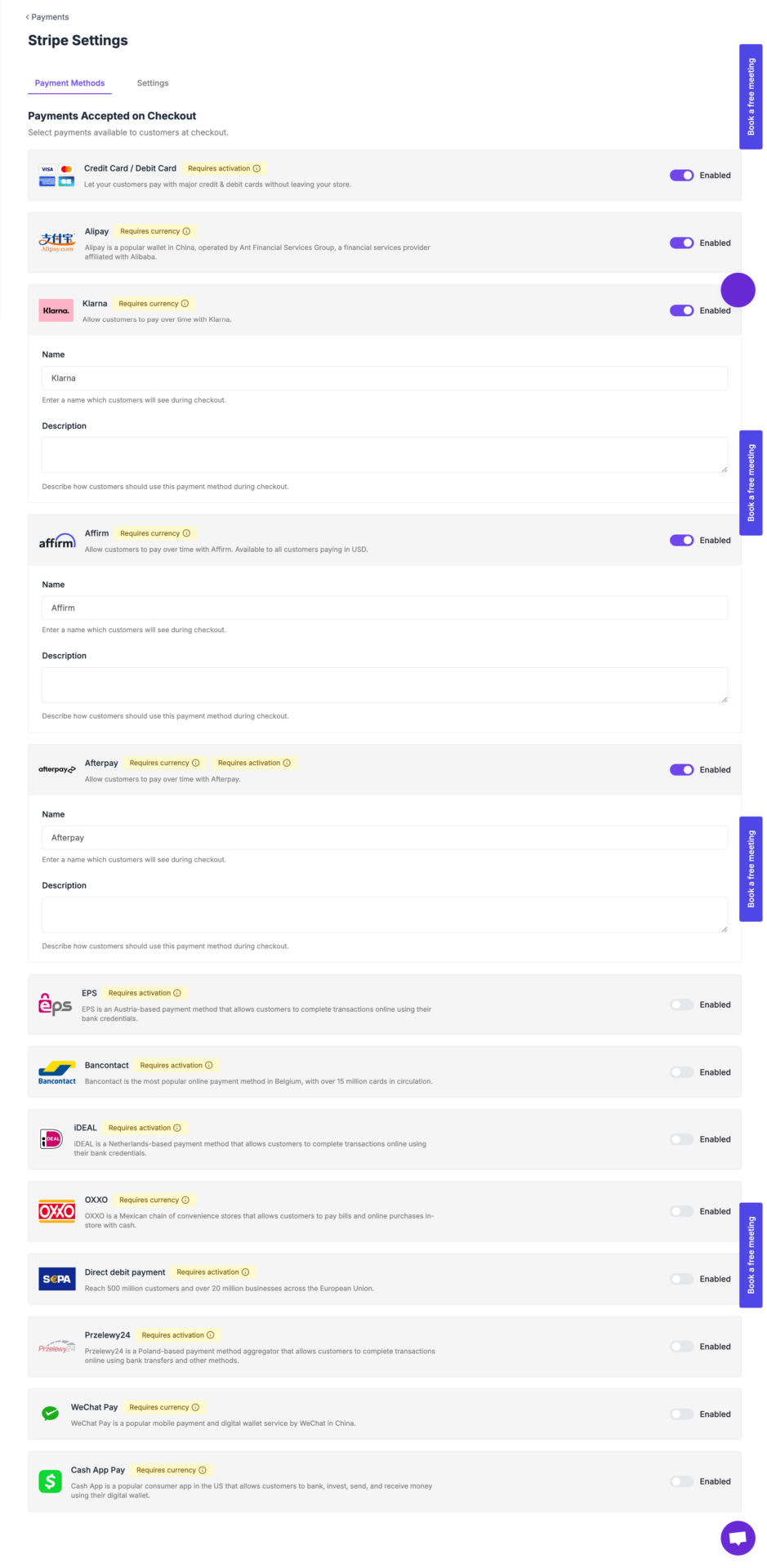
Click on the Save Changes button to finish.
Then customers can pay using the Stripe payment gateway-
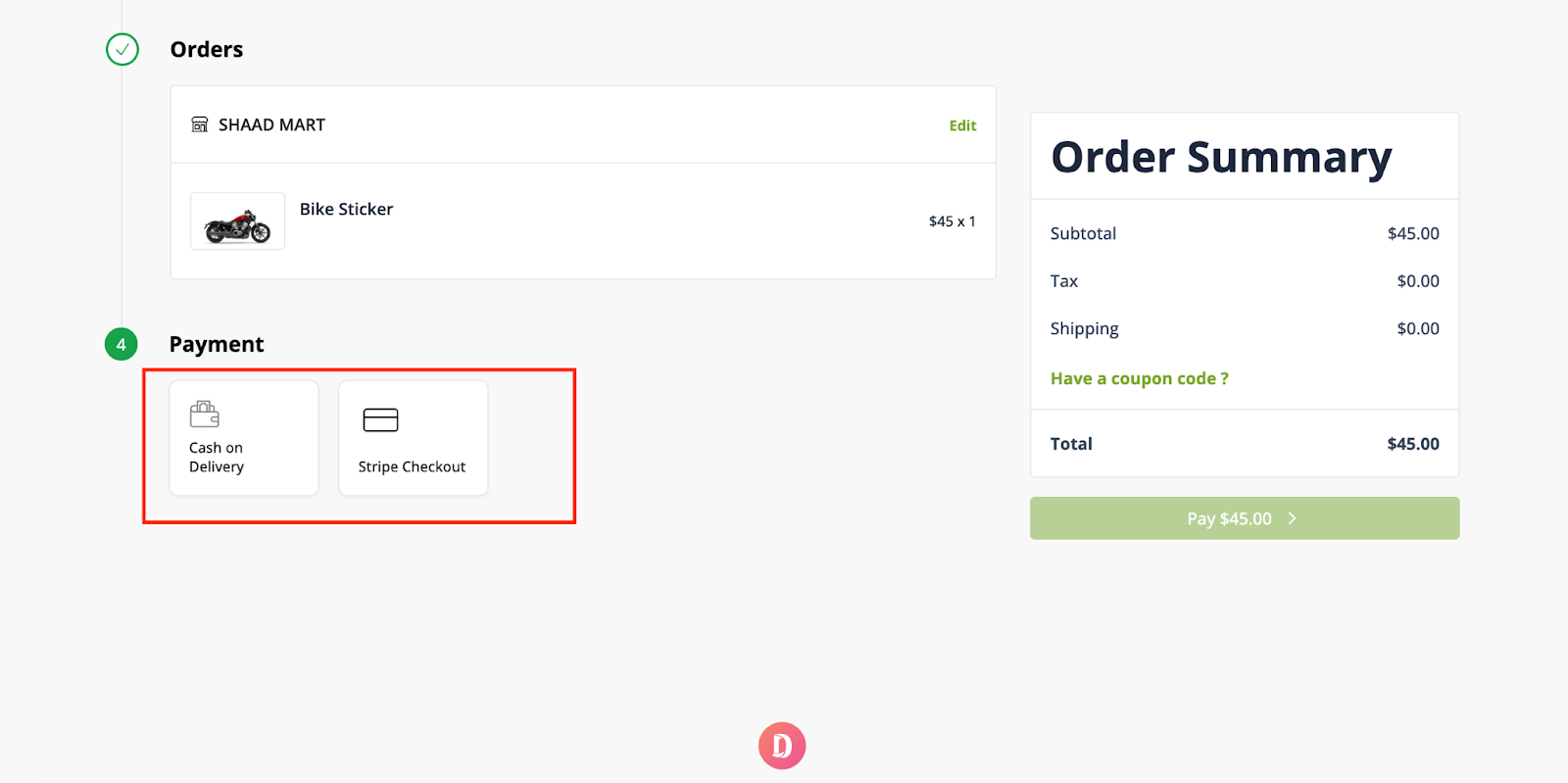
That’s it.
You can read this documentation to learn how to obtain the necessary Keys and ID’s of stripe.
You can also set up the *PayPal payment method* as well.
To get the PayPal secret key and Client ID, just log in to your PayPal account and copy the keys-
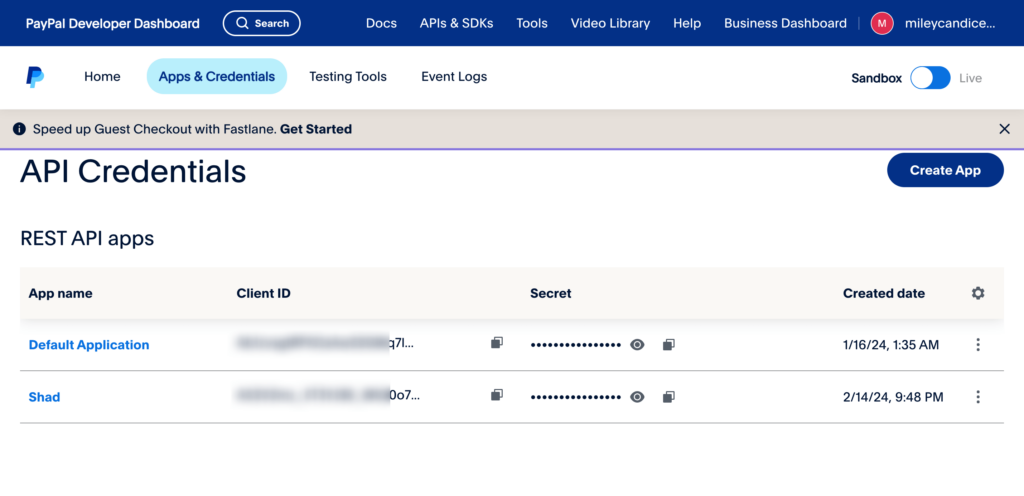
Read this documentation to get the secret key and client ID for PayPal.
After adding all the information, Click on the Save Changes button to finish.
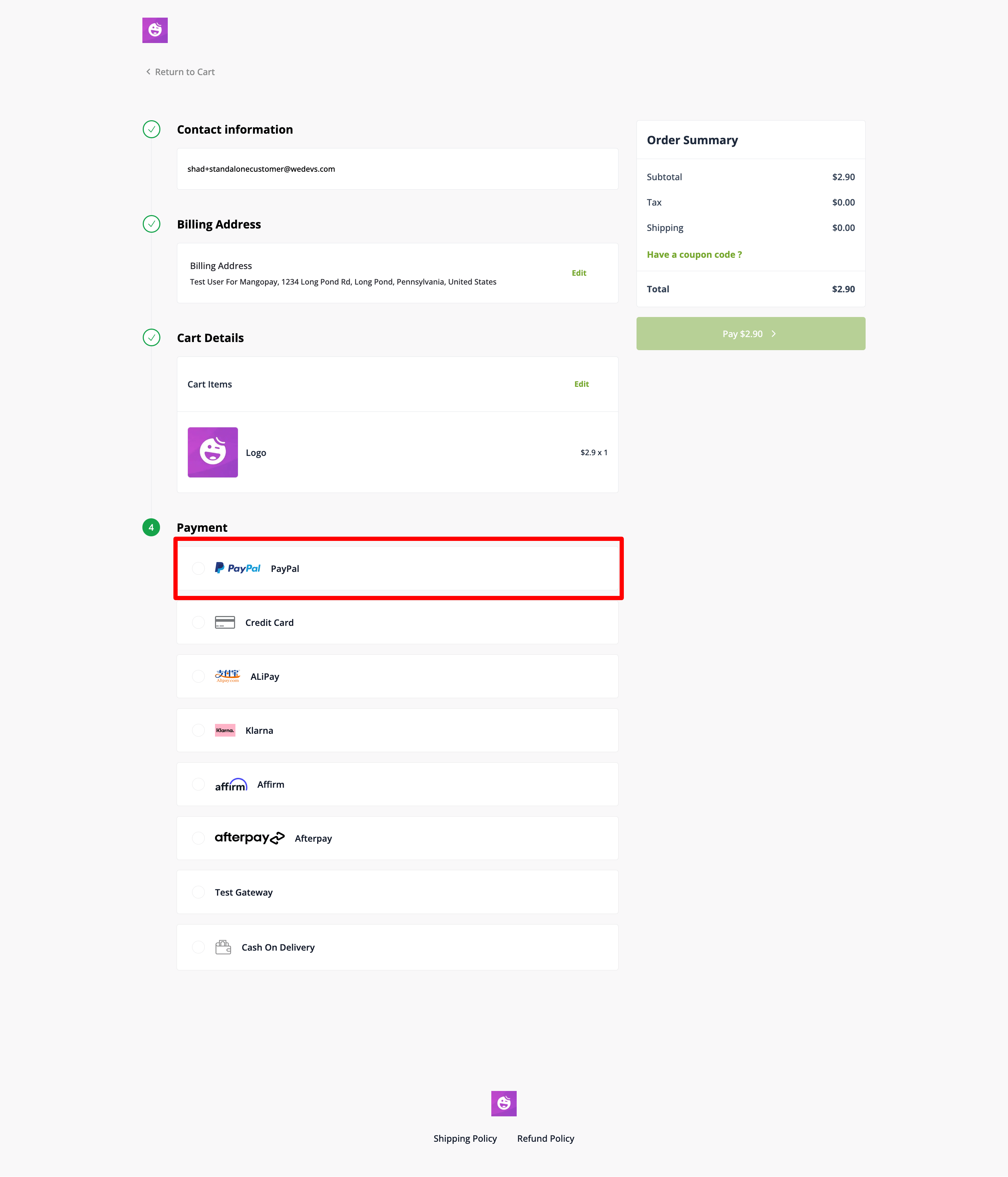
Now, customers can pay using PayPal-
After adding all the information, Click on the Save Changes button to finish.
Последнее изменение: 25/02/2026
Спасибо!