Vendor Order Management
Dokan Cloud will let you manage your orders with ease. You can filter your orders, cancel, or even delete orders from the admin or vendor dashboard.
We will show you how to configure the orders of your marketplace.
Note: The process of order management for admin and vendors are the same.
Order Management
You will find all the orders in the Order→ All Order section. There you can filter order based on-
- Completed
- Processing
- Pending
- Failed
- Canceled
- Refunded

When you click on an order, you will be able to see the order details-

From the Action button, you can *put the order on hold, cancel order, delete order*.
How to Charge Order
In order to accept the order, you need to charge order. Click on the *Charge Order button*, you will get a pop-up window. There, choose the payment method and click on the Charge “X” amount button.

The order will be accepted.

How to Create Shipments?
After accepting the order, you need to create shipments in order to deliver the order. Click on the *Create Shipment* button, you will get a pop-up window.
There you need to choose the number of products you want to ship, shipping status, shipment carrier, tracking number.

After clicking on the Done button, you will see that the Shipment is created.

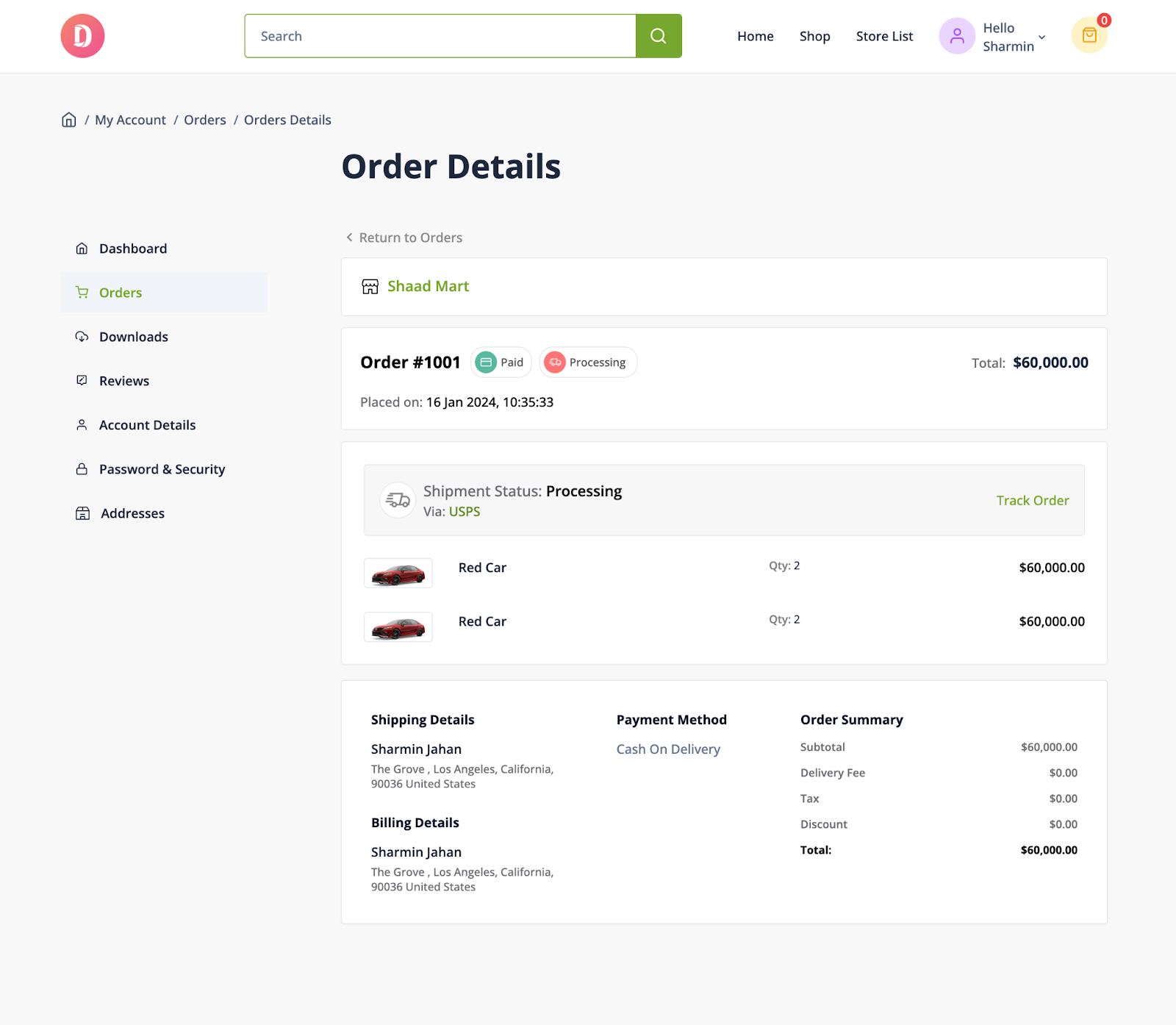
The customer will be able to view the order details in their account-

If the customer clicks on the Order Details section, they will be able to see the order details-
How to Refund an Order?
Refund is a complicated process. But Dokan lets you manage that easily.
To refund an order, go to an order and click on the Refund button-
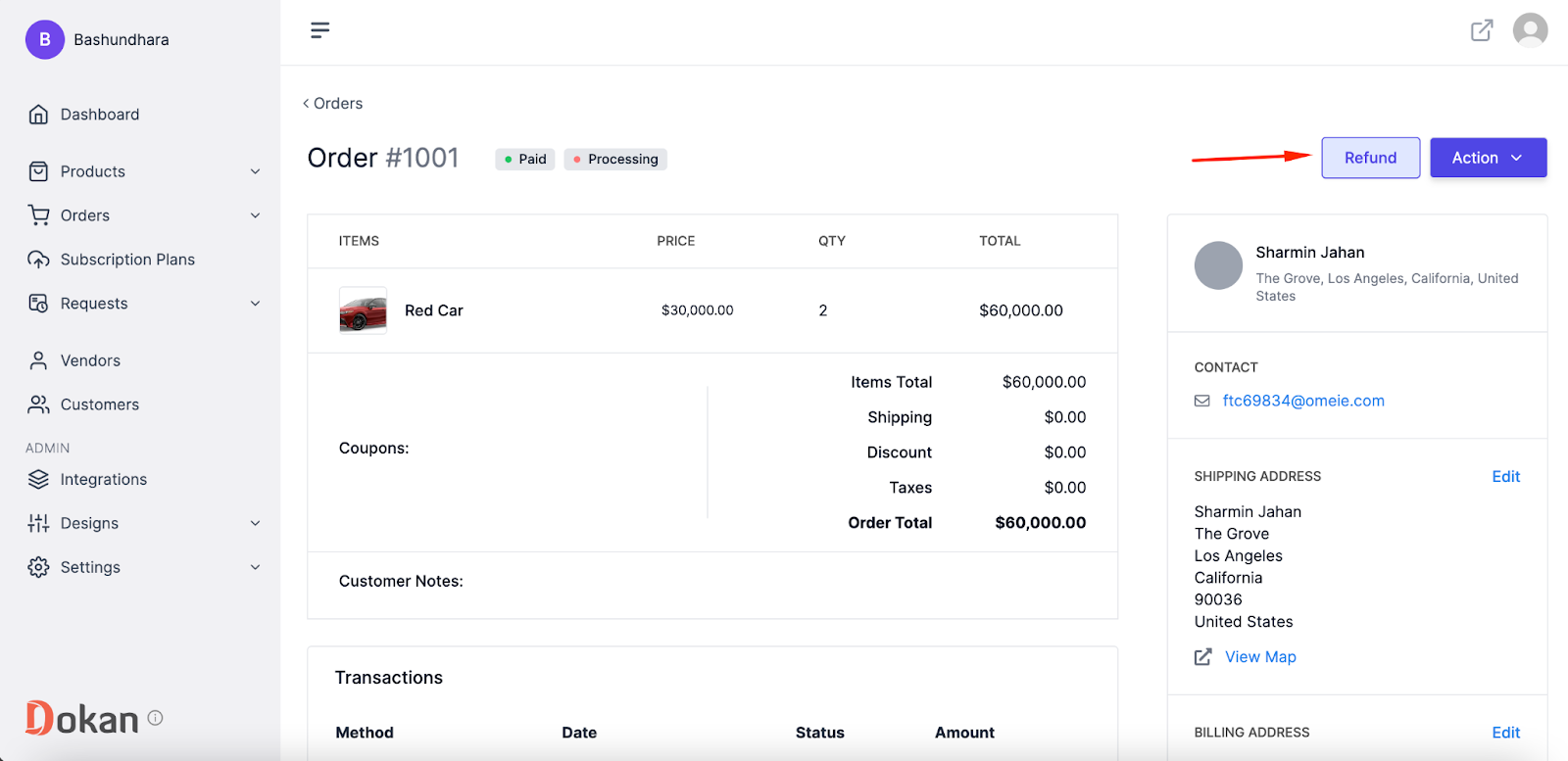
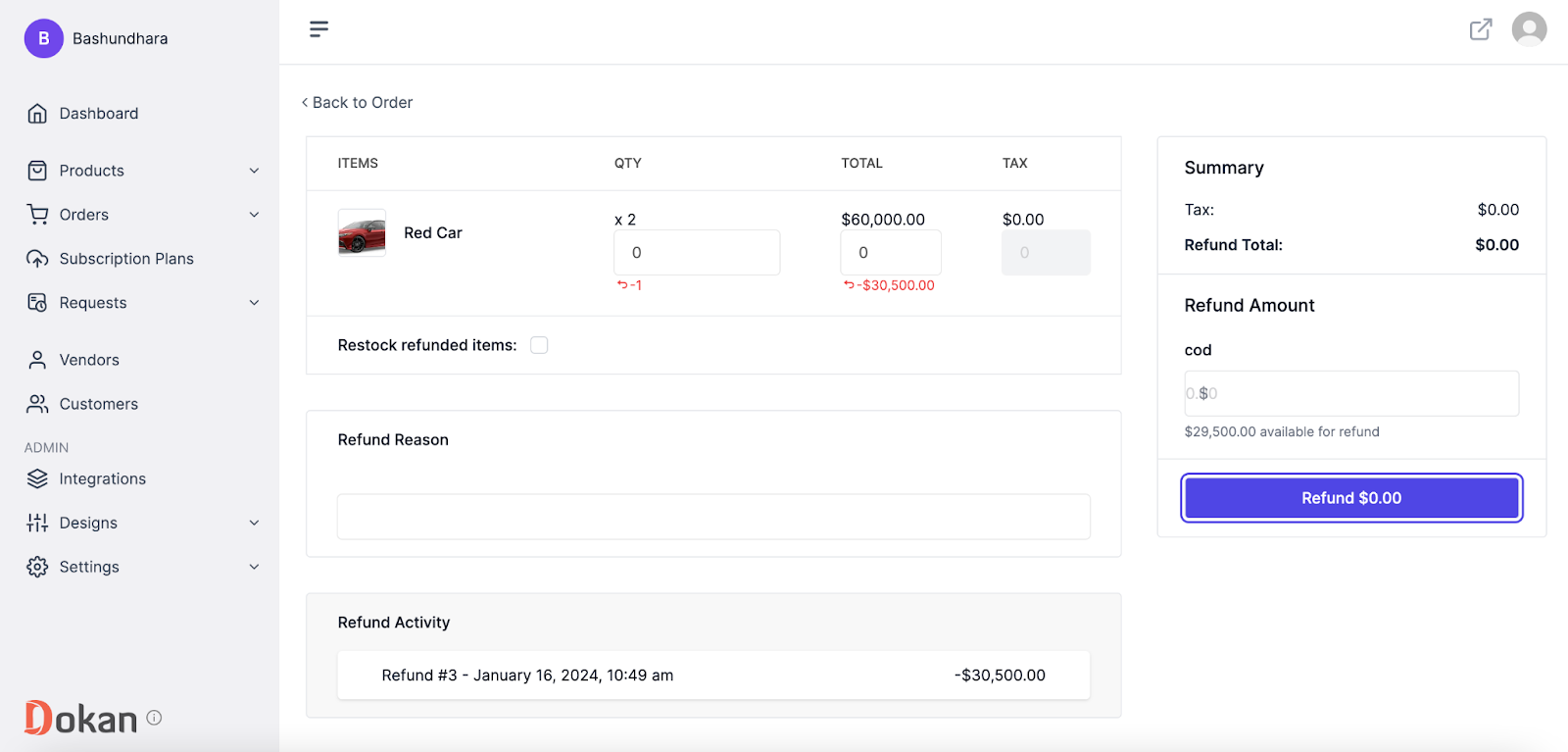
Now you can either refund the whole amount or you can refund partially as well.
In the refund page, choose the amount you want to refund and the quantity of the product. Also, write the refund reason if you want and then click on the *Refund “X”* amount button.
The order is partially refunded. The customer can see that in their account as well,
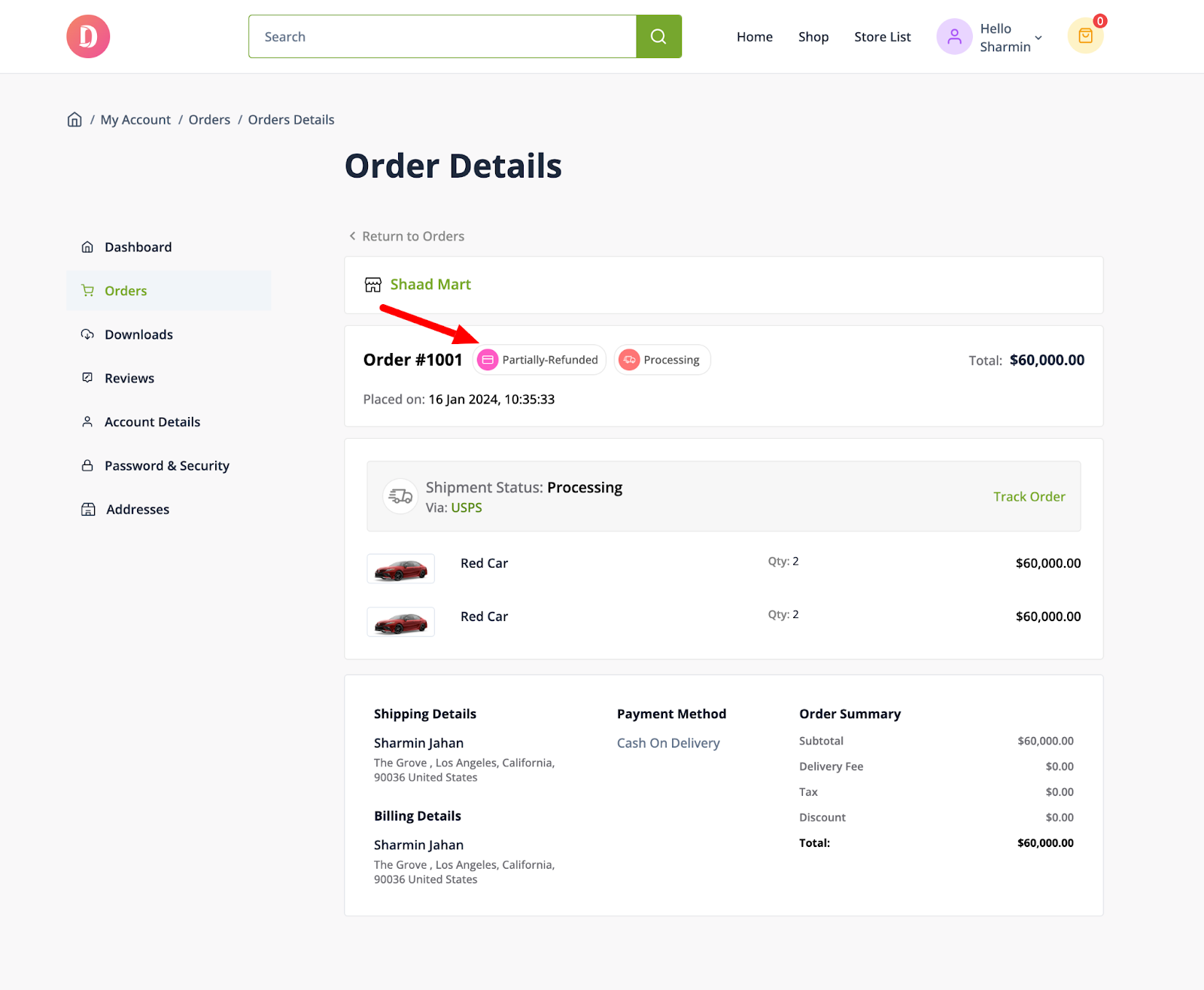
This is how you can refund an order.
Print Packing Slip
Now vendors can download print packing slips. Print packing slips are documents included with shipments that list the items in the package. They help both sellers and buyers verify the contents of an order. Packing slips typically show product details, quantities, and order numbers, making it easier to track shipments and handle returns or exchanges.
In the completed orders, just click on the Print Packing Slip button-

Here is what the slip will look like-

Download POS Size Invoice
A POS size invoice is a compact, printer-friendly receipt designed for point-of-sale (POS) systems. Typically smaller than standard invoices, these receipts include essential details like items purchased, prices, taxes, total amount, and payment method. They are optimized to fit on small receipt paper rolls, making them ideal for quick printing at retail checkouts.
To download the POS Size invoice, just click on the Downlaod Invoice(POS) from the Action Dropdown-

This is what it will look like-

Последнее изменение: 25/02/2026
Спасибо!